General
IT Support Guide
How to access the service desk portal
How to Change Your Default PDF Viewer on Windows, macOS, Chrome, and Microsoft Edge
How to Verify It’s Really Cloud Collective Calling
Introduction to AutoElevate
Introduction to 1Password
File Naming Best Practices
Microsoft Office / Office 365
Mobile Device Setup
Outlook App Setup on Android
Outlook App Setup on IOS
Enrolling Your iPhone in Intune
How to Remove Mail Accounts from the Outlook App
Setting up Teams on iOS
Setting up Outlook app for iOS
IOS Intune Setup
Android Intune Setup
How to set up a mobile hotspot (iPhone/Android)
Outlook Mobile Sync Fix
Installing Microsoft Teams on iOS
Installing Microsoft Teams on Android
Link Office 365 to Android (Samsung) Apps
Add an O365 account to Blackberry Hub
Multi-Factor Authentication
Multi-Factor Authentication (MFA) Setup (IOS)
Multi-Factor Authentication (MFA) Setup
How To Use Number Matching with Multi-Factor Authentication (MFA)
Multi-Factor Authentication (MFA) Setup - SMS only
Changing Multi-Factor Authentication to a new phone
Teams
Adding a Call Delegate
Guide to Physical Phones
Signing into a Physical Phone for Teams
Teams Troubleshooting
Basic Teams Voice Information
Call Forwarding in Teams
How to add safe sender
Add Public Folder Calendars
How to Unlock Your Account VIA the Microsoft Online Password Reset Portal
Remove Velixo Add-In in Excel
Azure Storage Explorer
Advanced Permission Management for SharePoint Sites and Folders
How to Set an Automatic Reply for a Shared Mailbox
How to edit or change your email signature
Sharing files in SharePoint
How to Send Emails Out as a Shared Mailbox Alias
Accessing Netdocuments on OWA
Adding Room/Equipment Calendar to Outlook
How to Send emails as an alias
How to Remove Inherited Permissions and Grant Permission to a Sharepoint Folder/File
Outlook Classic Signature Management
Adding internet calendars to Outlook
How to Setup & How to Perform Self-Serve Password Resets
Share/Grant Permissions to Calendar in Office (Desktop/Web)
Add Shared Calendar
How to Enable Notification for OneDrive folders
Understanding the Difference Between OneDrive and SharePoint
How to Setup Email Rules for a Shared Mailbox
Open Shared Mailbox / User's Mailbox in Outlook on the Web (OWA)
Microsoft Defender for Office 365 & The Report Messages Add-On
Onedrive and Known Folder Move (KFM)
Access your Online Archive in the Outlook Client
Sharing Files with Onedrive Desktop
Add Public Folder Calendars
How to add Teams "Call me" Signature hyperlink
Accessing Quarantined Emails
How To Password Protect your Office Files
Working with SharePoint
How to Remove Metadata from Microsoft Word Files
Invite users to mail lists
Sharepoint
Find & release quarantined messages in Exchange Online
Exporting OneNote Notebook
Sync your SharePoint Libraries to Windows Explorer
How to Create Signature Auto Text in word
Set Signature in Outlook
Add Public Folder Contact Lists
Activate Office 365
Add Quick Access Toolbar from Saved File
Located Item/Folder Missing in Outlook
Add Shared Mailbox in Outlook
Share Outlook Contacts Folder
Recover Deleted Outlook Items
Find Folder Path in Outlook
Add Public Folder Contact Lists
Remote Desktop
Microsoft MFA for Remote Desktop Gateway
Redirect Local Resources over RDP
Access Remote Desktop via IOS
Use Remote Desktop from a Mac
How to Redirect Remote Print Jobs to a Home Printer
Edit Remote Desktop settings on Windows 10
Edit Remote Desktop settings in Microsoft Remote Desktop 10
Change your RD Gateway URL (Mac)
Change your RD Gateway URL (Windows)
Use Remote Desktop on a mobile device
How to change your password in a remote connection
Get Sound on a Local Machine from a Remote Session
Adobe
Set Adobe To Be Default PDF Reader
Change New Adobe Acrobat Pro to Old Adobe Acrobat Pro
Adobe PDF Combine Tool Error
How to activate your Adobe account
Security
Windows
BC Time Zone Change
Clear Browser Cookies & Cache
Bluetooth Headset Troubleshooting Guide
Reset your Domain password
How to find the name of a computer
Strategies for managing maximum file length limits
Set Default Apps in Windows
Workaround for File Explorer Crashing
Worldox
NetDocuments
3CX
Sitelink
Switch Sitelink to classic UI
SiteLink End of Shift Procedure
How to fix "Previous Instance of SiteLink Running" error
Security
VPN
Printers & Scanners
How to add a network printer
How to change printer settings such as single-sided printing, page size, etc.
Mac
- All Categories
- Microsoft Office / Office 365
- Azure Storage Explorer
Azure Storage Explorer

Prerequisites
Before you begin, ensure you have:
· Azure account credentials (or an M365 account that has been granted access)
· Azure Storage Explorer installed on your computer.
Step 1: Download and Install Azure Storage Explorer
- Visit the official Microsoft download page: https://azure.microsoft.com/en-us/features/storage-explorer/
- Download the installer for your operating system (Windows, macOS, or Linux).
- Run the installer and follow the on-screen instructions to complete the installation.
Step 2: Sign In to Azure Storage Explorer
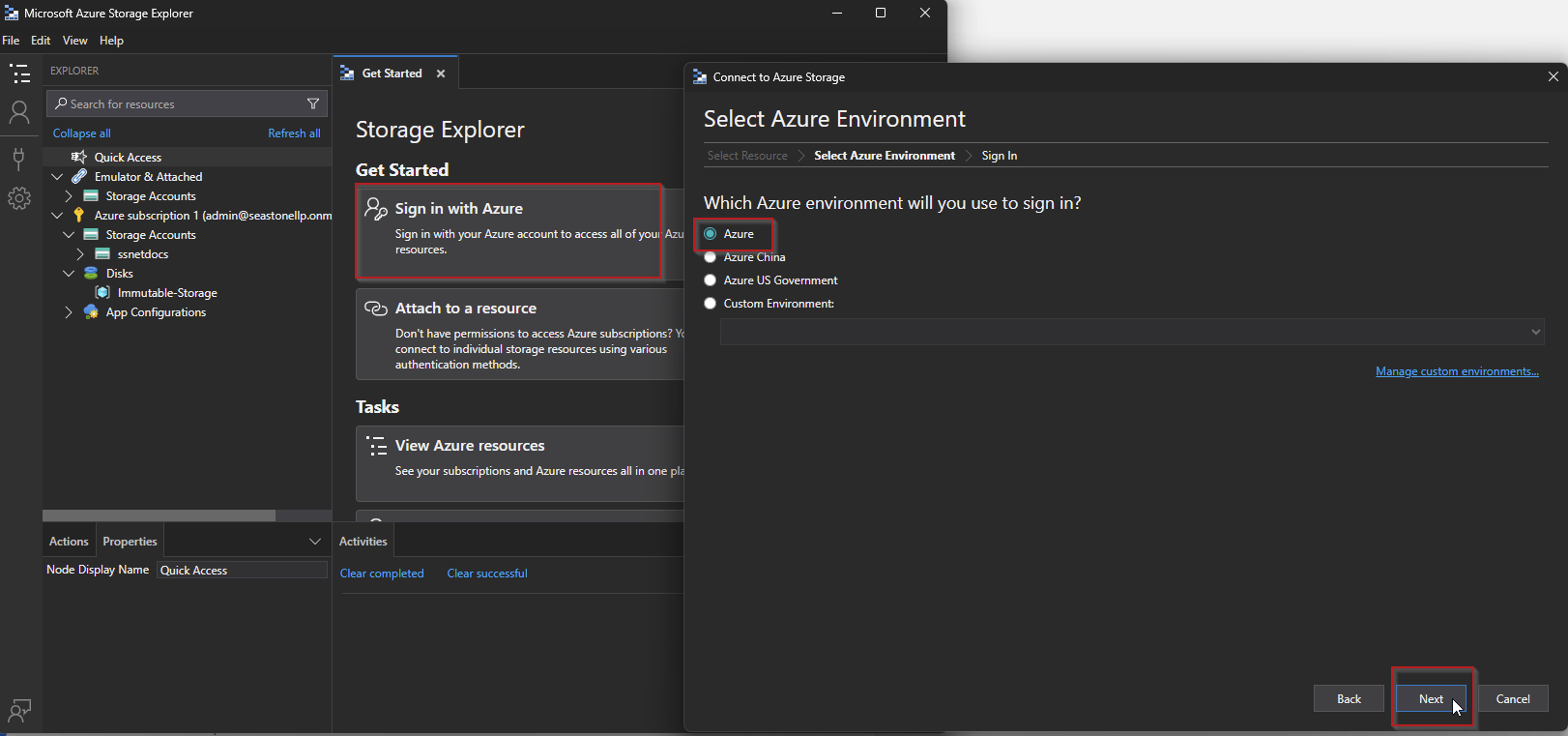
- Open Azure Storage Explorer.
- Click on 'Sign in' and enter your Azure credentials.
- If Multi-Factor Authentication (MFA) is enabled, complete the verification process.
Step 3: Navigate to Your Storage Account
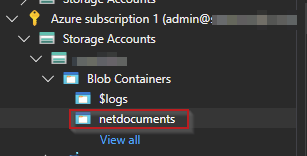
- In the left-hand panel, under subscriptions, expand 'Storage Accounts'.
- Expand the container you want to retrieve files from.
- Expand 'Blob Containers' In this example our files are storage in 'netdocuments'
Step 4: Download Files
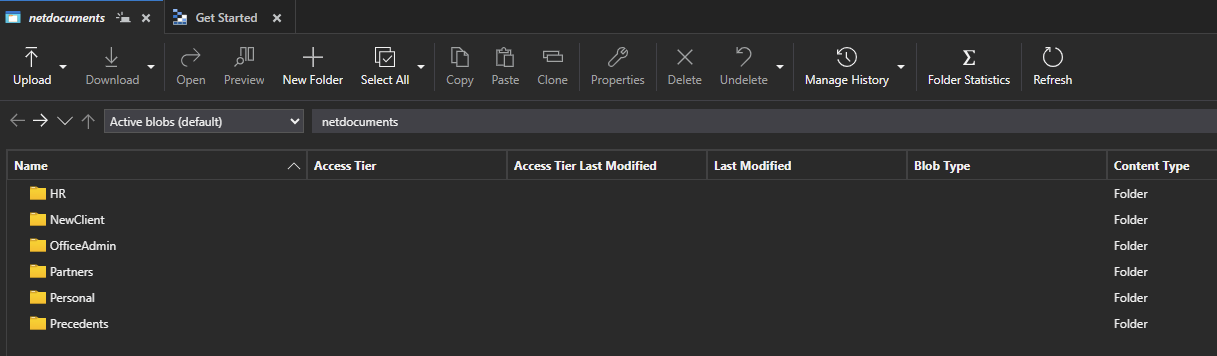
- Browse the container to find the required files.
- Right-click the file and select 'Download'.
- Choose a local folder to save the file.